
STEP + DXF · ZIP
Complete study package
All six STEP parts with the supporting DXF files.
Get complete packageBrowse original review folder ↗Meet Beer Man: guided drink-and-bite tour, all character prototypes, dated part downloads and revision comments.
Open prototype studio · R105 ↗ Simple visual brief ↗Bill’s design workspace
Make draft cuts, place components, and show GO3D the change you want. Your source and saved profiles stay separate.
Build from the real figure. Watch a step, then try it here.
Mechanical preview layers
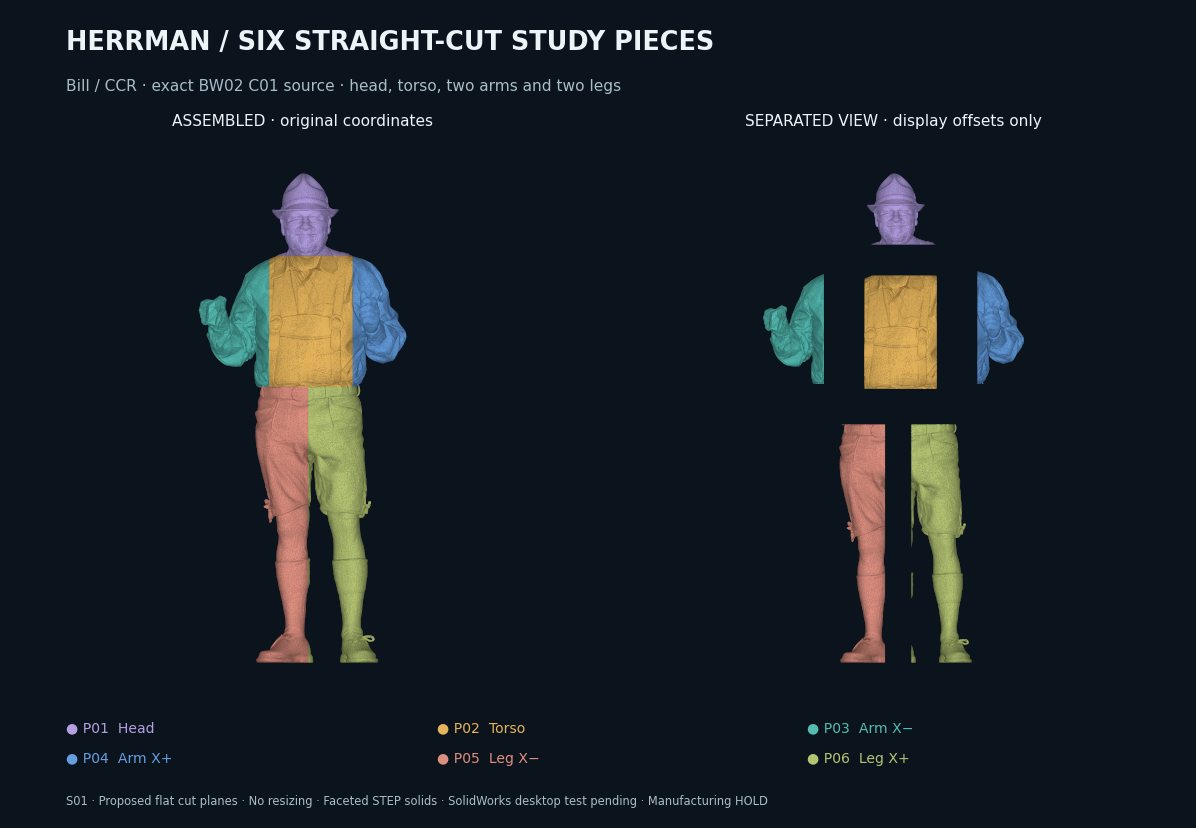
3D is unavailable on this device. The previews, downloads and request form still work.
Connect a DualSense by USB or Bluetooth, press Scan, then press any controller button. In View mode, left stick rotates, right stick pans and L2/R2 zoom. With a selected part in Move or Rotate, the sticks edit that part. L3 cycles View / Move / Rotate; R3 toggles fine control after loading the DualSense layout. Button maps and keyboard shortcuts are saved only in this browser.
No controller detected. Keyboard: WASD rotate · IJKL pan · − / + zoom · Home center.
Loading the exact C01 source…
2 · Get files
Tap a picture to enlarge it.
STEP = 3D CAD · DXF = reference slice profiles
Choose the piece you need. These ZIP files contain the prepared S01 faceted STEP solids and checks.
Loading files…
Your cut proposal has changed. Downloads below remain the original S01 study; use your change request for a new version.
All six STEP parts with the supporting DXF files.
Get complete packageBrowse original review folder ↗Both DXF files together: flat profiles and their 3D stack, spaced every 0.39 in along Y.
Download DXF package Reference contours from the full body; not final cutting templates.S01 STEP files passed recorded CAD-kernel checks. SolidWorks 2021 desktop acceptance, physical scale and manufacturing approval remain pending.
These are separate source revisions. Keep their names and coordinates when comparing them.
3 · Request a change
Your selected part and any marked point are included automatically.
How to save and mark a cut · One-page update (PDF)
No point marked. Use “Mark a point” if a location helps.
Crop size around your point, in inches.
Copy the instructions into your message to GO3D, or attach the downloaded request file.
Saved on this device. Copy or download your request and send it to GO3D; this form does not submit it automatically.
The local processor can create and check a review file. Keep this page open while it runs.
Download checked resultDisplay: inches · 2 decimal places. CAD files keep their original units. Review study only · manufacturing HOLD. The original scan and prepared CAD stay unchanged when you edit this draft.